
Clean up and manage disk space on huge drives and network volumes easily with ShowSize.
Discover 7 new file and folder lists! List folder sizes, number of files & folders, size & number of file types, all folders & files together, only files, only folders, owners and more...
Click on the following picture to see a short presentation. I will show you how I used the Folder Sizes list to find out where most of my disk space was used up.
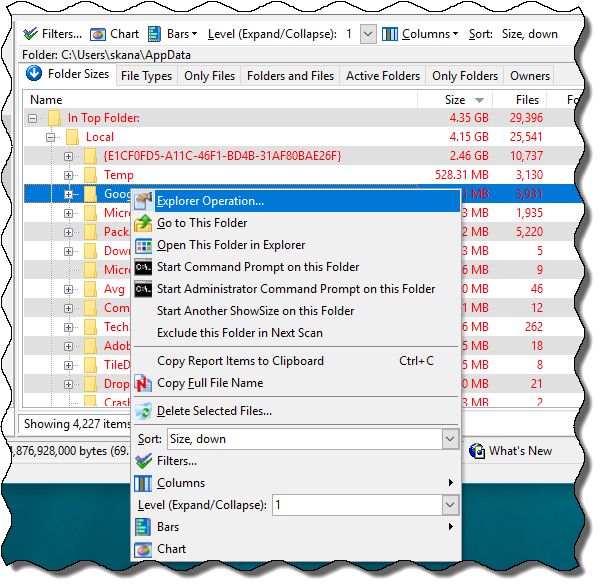
Integrate with Windows Explorer and start any list on the right-click menu.
Print contents of folders easily.

Click to Read version 5.1.8 Review.
Get 7 useful lists on folders and files that you don't get in Windows Explorer.

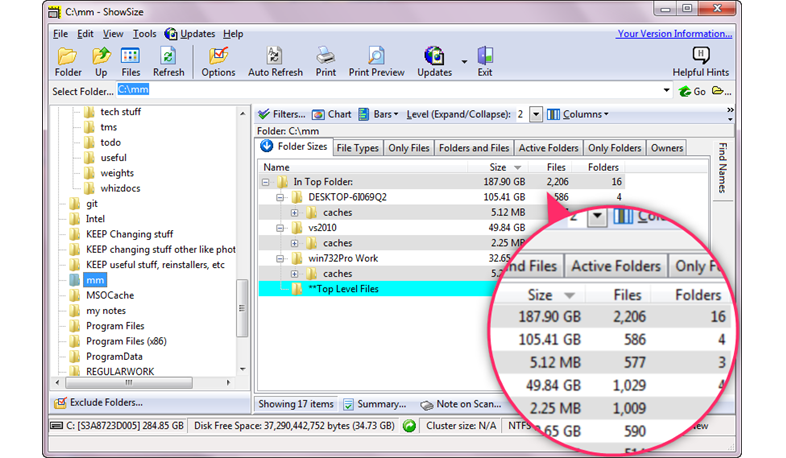
1. Folder Sizes List
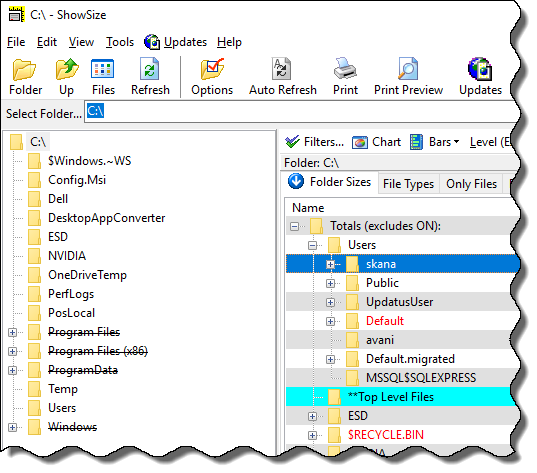
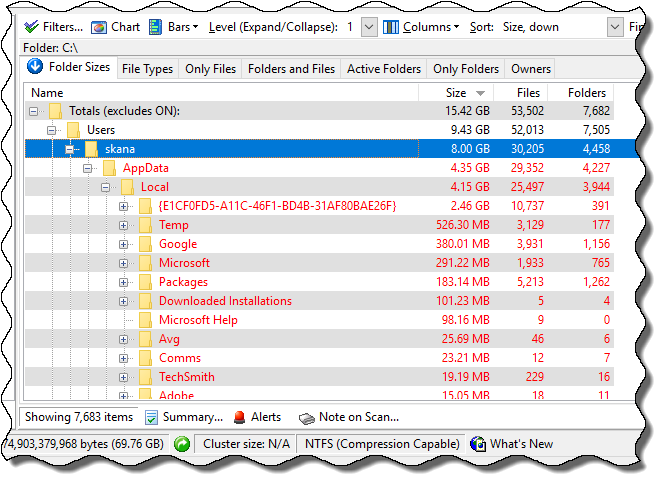
Lists folders in the order of decreasing size so that larger folders appear at the top.
Learn more...

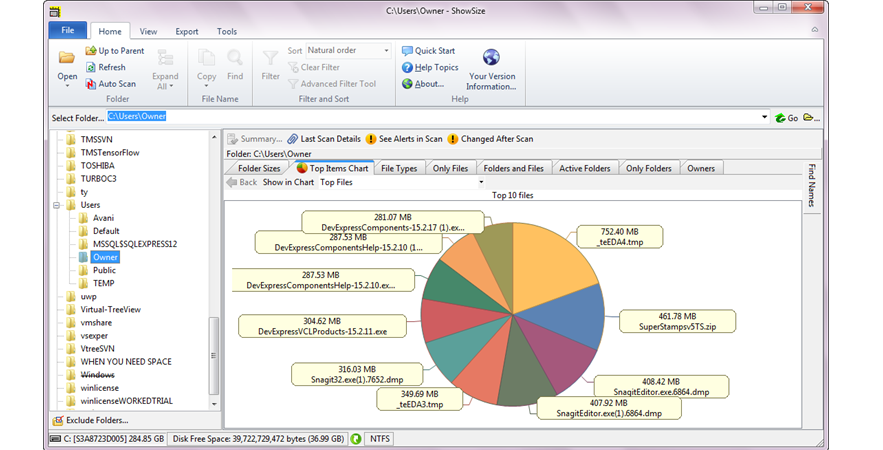
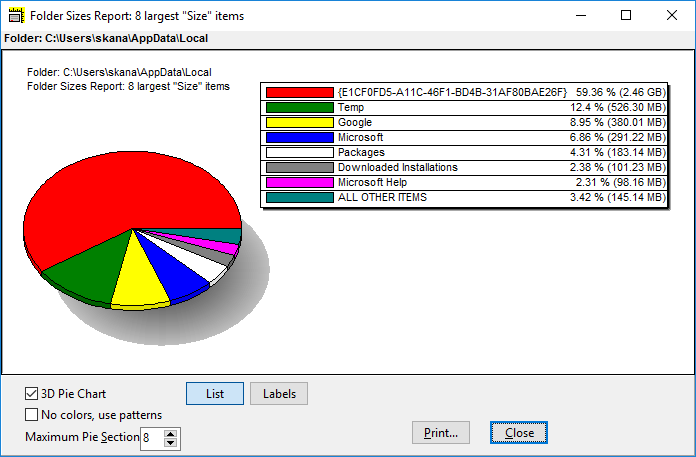
Pie Chart
Click on the Pie Chart button of any list and you see a pie chart on the current sorted column of that report.
Learn more...

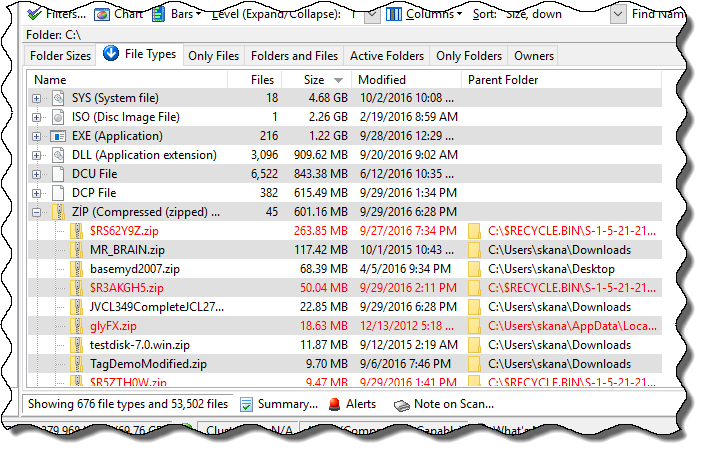
2. File Types List
Lists files grouped by their type with the total size occupied by each such group.
Learn more...

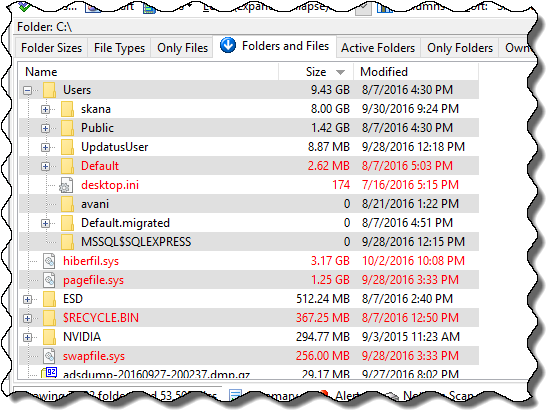
3. Folders & Files List
Unlike Windows Explorer, this list presents all the folders and files together in a "single" hierarchial list with their sizes and numbers.
Learn more...

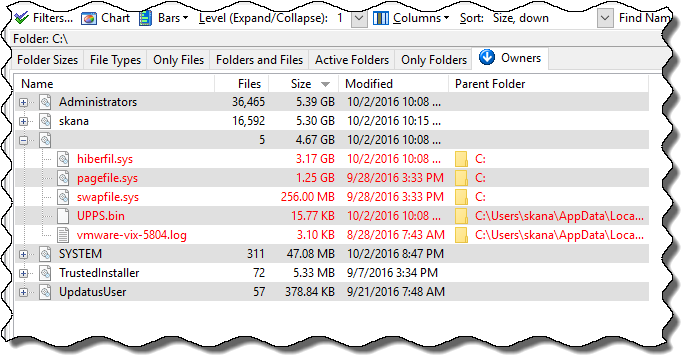
4. Owners List
(Pro Edition Only)
Lists files grouped by their owner information with the total size occupied by each such group.
Learn more...

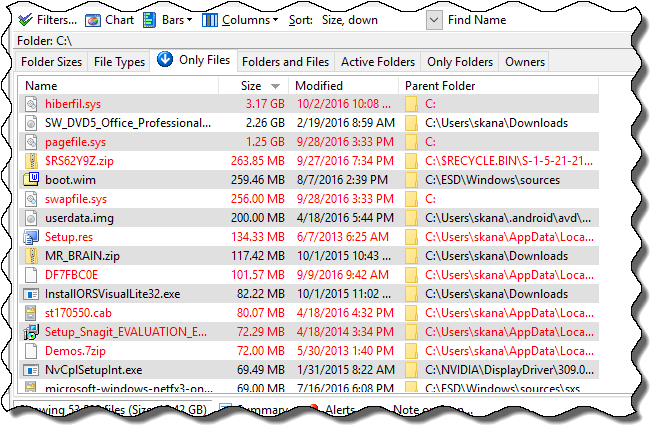
5. Only Files List
Lists all the files contained in the target disk location in a "flat" list. This is a real innovation. For example, this is the only way to find the largest file in a location no matter how deep down in subfolders it exists.
Learn more...

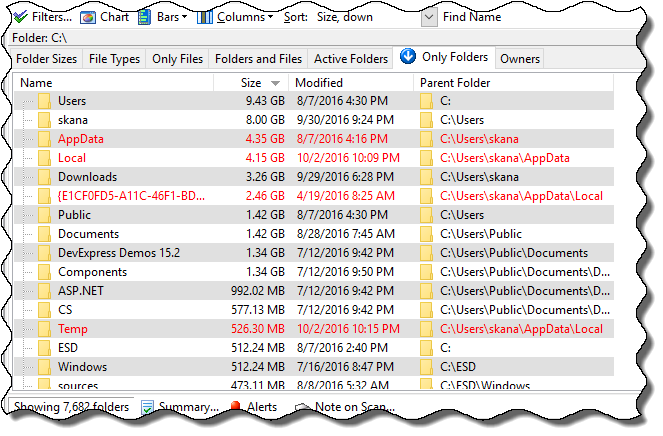
6. Only Folders List
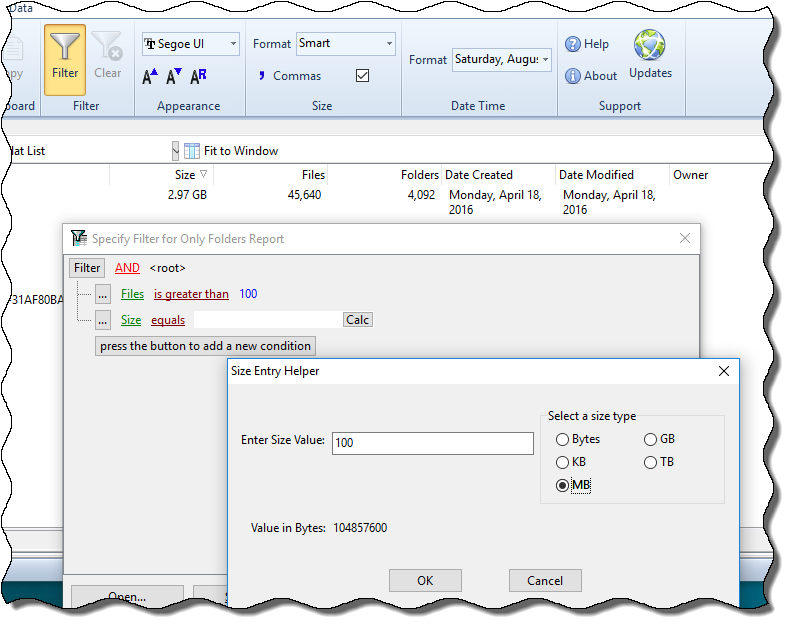
Lists all the folders contained in the target disk location in a "flat" list. This lets you do some interesting things like finding the biggest folder on the disk no matter how deep it is within the file system.
Learn more...

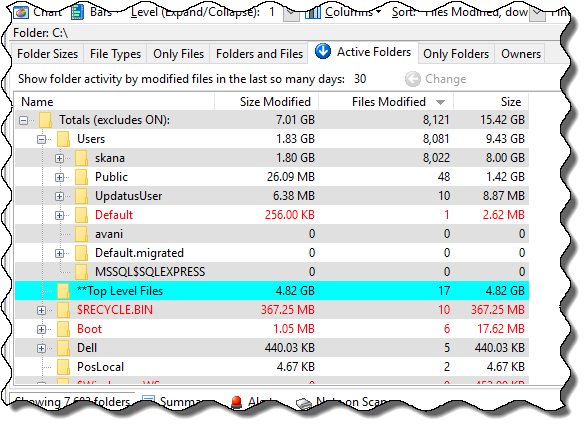
7. Active Folders List
Lists folders by the size or number of files modified in the last so many days. Makes it possible to identify folders where files have been modified most. A nice report for network admins.
Learn more...

Integrate with Windows Explorer
You can install any of the 7 ShowSize Lists on the right-click menu of Windows Explorer.
Use the Tools menu of ShowSize to do that.

Pro Edition, save reports
Save reports to view them later at any time on any system. These report files are perfect for sharing with other users. They can be viewed even on a system not connected with the original system.
Learn more...

Pro Edition, ShowSize Analyze program
An additional program is included in the Pro Edition called, ShowSize Analyze.
It offers advanced filtering, printing and export features. The idea is, collect the reports with ShowSize and analyze them better with ShowSize Analyze.
Learn more...

Designed for speed
ShowSize directly scans a given folder. You can switch off the left pane for slow network drives. Moreover, it uses its own cache when you drill down the folders in the same report.
The virtual listing technology in ShowSize can list millions of items making it possible to produce the Only Files report described above. Ordinary software would choke on such a list.
Learn more...
ShowSize is a powerful disk space analysis utility. Please read more about it on the Home page.
Some examples of using ShowSize:
A disk F: is filling up fast. I want to quickly find the big-size folders and see if I can delete some.
I can do that with "Folder Sizes list." To see how this list works, please follow the link under Folder Sizes list above. Also see a demo on the Demos page.
I have a big folder "F:\Photos and Travel docs" containing lots of JPG photographs in many subfolders and also some documents and zip files. I quickly want to see how much space the JPG files are taking so that I can put them on a CD.
I can do that with "File Types list." To see how this list works, please follow the link under File Types list above.
I have a mixture of big and small files on a usb hard disk in many subfolders and just want to delete some large files to make space.
I can do that with "Only Files list." To see how this list works, please follow the link under Only Files list above.
Software for Windows
32-bit and 64-bitWindows 7, Windows 8 desktop,
Windows Vista, XP
and Windows server editions 20xx

Designed for speed
ShowSize directly scans a given folder. You can switch off the left pane for slow network drives. Moreover, it uses its own cache when you drill down the folders in the same report.
The virtual listing technology in ShowSize can list millions of items making it possible to produce the Only Files report described above. Ordinary software would choke on such a list.
Why choose ShowSize over other such software?
Beware of disk utilities that get locked into a long operation like a scan and don't give you any way to cancel out of it.
Learn more...

Print file lists easily
If you want to print a basic list of files and folders, you can use Folders and Files list. Otherwise, all the lists in ShowSize can be printed.
You can print through command line too. This helps with making batch files for printing.
"I searched on Google. Yours was the third one I downloaded and tried but
the only one which really does what I was looking for. It's amazing that
something so simple in concept was so hard to find. I am very pleased
with Showsize."
"Your program is saving me a ton of time and the ownership information is invaluable to me! The latest version with that optional "owner" and "modified" columns are exactly what we needed! I'm also very glad that it works with Windows 7 64-bit."
"It's also very cool to work with a program that when you hit cancel on a long running operation with over 300,000 entries, that it actually works! The program is great!"
See more comments from happy customers....
Blog articles
Read Blog articles contributed by our advanced users:
How I analyze user disk space with ShowSize!
Many more power features
- Automate running through command line features to be used in batch files
- Detailed alerts when ShowSize can not access certain folders due to permission restrictions
- Export data to CSV or HTML format
- Symbolic links detection and option to skip them
- Identify system and hidden items, symbolic links in the lists by special cusotmizable color
- Find a file or folder name, even in huge lists
- Multiple copies of ShowSize can be run on different locations to save time
- Customize the report columns by drag and drop
- See wasted space in partial clusters
- UNC path support
- Filters and filter testing
- Auto refresh to monitor a location
- Start a command prompt or admin command prompt on a folder directly from right-click menu
