Screen shots of Reports in ShowSize
Please click on an image to enlarge it
Folder Sizes Report
Folder Sizes Report
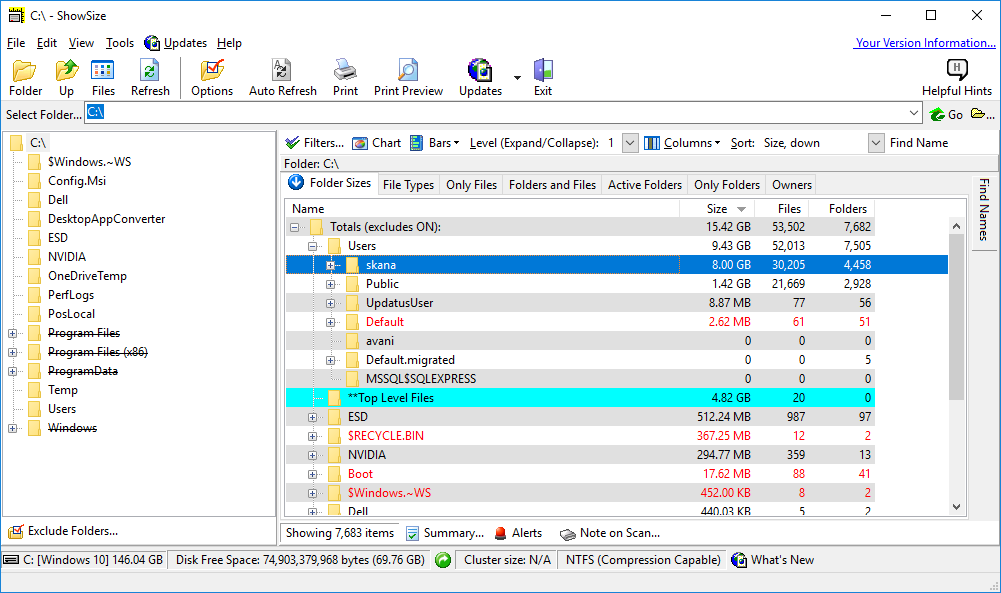
Use this report and get a breakdown of folder sizes, wasted space, number of files, etc.
Columns available: Folder Name, Size, Wasted Space (in partial clusters), Size on Disk (includes wasted space), Number of Files, Number of Folders, Modified Date, Backup Size (size of files with the archive bit set)
Since this is the main report in ShowSize, there is a whole tutorial devoted to it. In ShowSize, click on the menu Help--Tutorial and you will see a complete explanation of this report with all the features. Many features like column dragging and dropping also apply to other reports.
| Pie Chart of Folder Sizes Report
Pie Chart
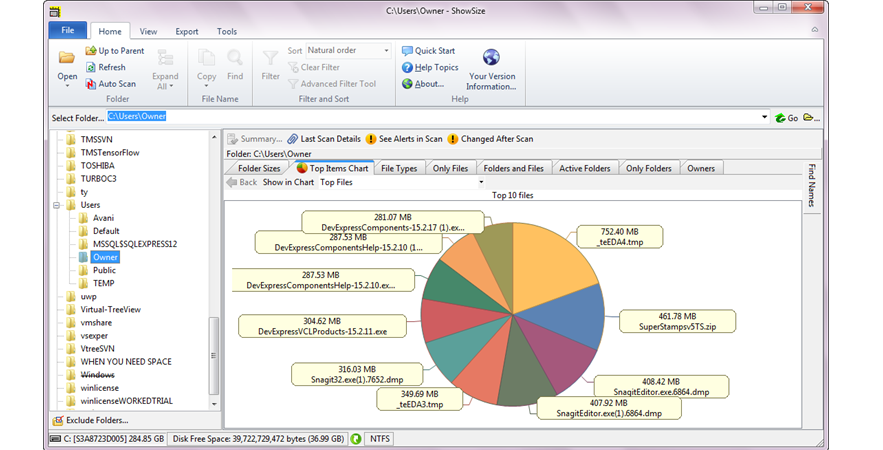
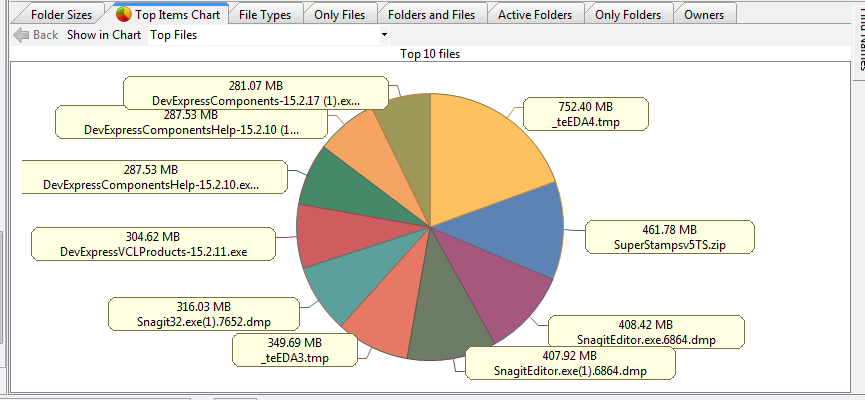
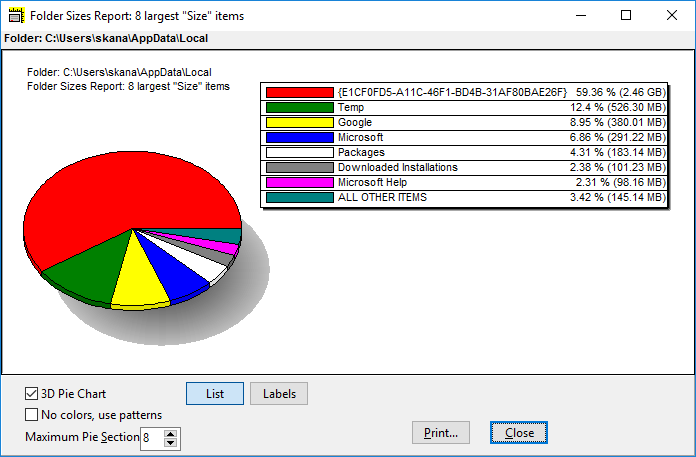
ShowSize can show a pie chart of many reports. For example, this is a pie chart of the Folder Sizes report that you already saw.
In order to see the pie chart, you must have sorted the report on a column on which the pie chart can be shown. For example, here we had sorted it on folder sizes column. Once you do that, clicking on the Pie Chart toolbar button produces this pie chart.
| Same Pie Chart in the form of a list
Pie Chart in a List Form
This is another variation of the pie chart in the form of a list.
| File Types Report
File Types Report
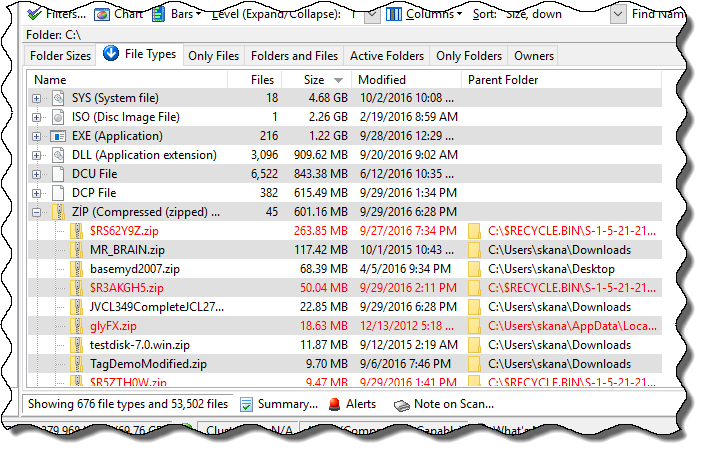
Use this report and find out how much space is occupied by the files of a certain type (having a certain file extension). You can also see a complete list of files of a particular type by simply clicking on the + button next to a file type item.
For example, this report makes it easy to see how much space all those photo files (*.JPG) are taking up in a folder, including the subfolders.
Columns available: Type/File Name, Number of Files, Modified Date, Parent Folder, Wasted Space (in partial clusters), Size on Disk (includes wasted space).
For example, in the picture I can see various file types present in the Eudora folder, at a glance, irrespective of their exact location within subfolders. I have expanded the GIF files to see the actual file names present and in which parent folder (subfolder of Eudora). I can also see that lot of TMP files exist which I can delete to free the space occupied by them.
| Only Files Report (not available in ShowSize PE)
Only Files Report
Not available in ShowSize PE (Personal Edition)
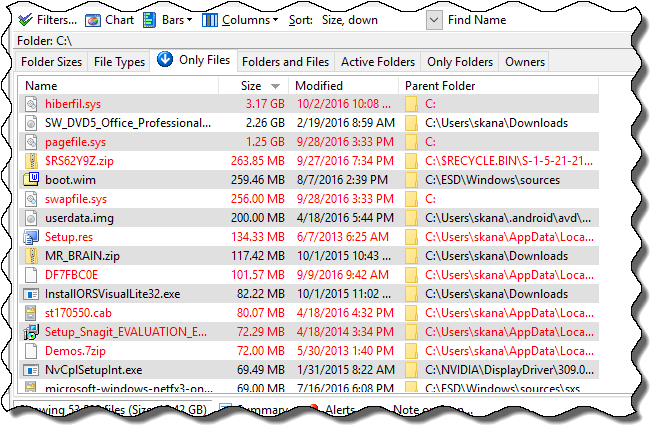
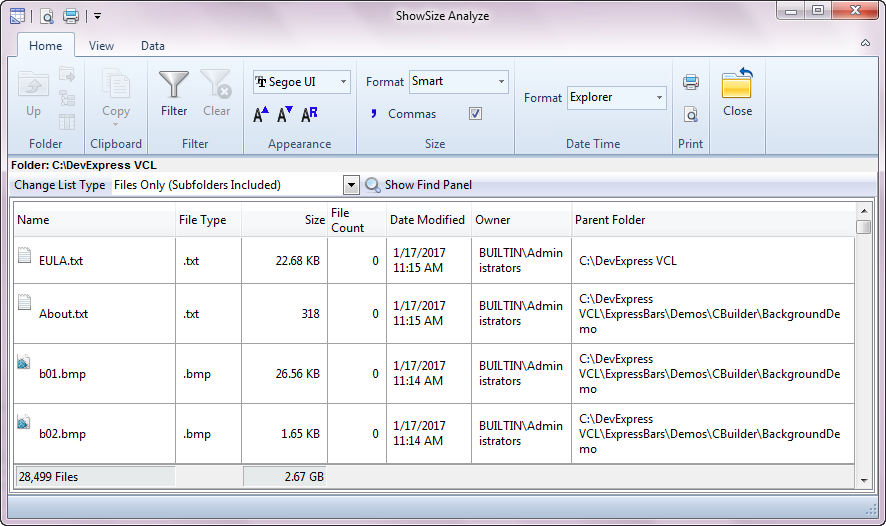
Lists all the files, even those in subfolders. This gives you new ways to explore your file system. For example, you can sort on file sizes and find the largest files contained on a drive or a folder. Or, you can sort on date and see the oldest files. This is a unique report unlikely to be found in any other product. Why? Because it can easily run into millions of entries in the list that would choke ordinary software. But the virtual listing technology in ShowSize can handle it very well.
Columns available: File Name, Size, Modified Date, Parent Folder
For example, I have sorted this Only Files report on file sizes, descending, and I can see that the largest file in this folder is dapoli.avi. There is no way I could have found that out with Windows Explorer.
This all-encompassing view also gives you interesting possibilities for file operations, such as, zipping up only older files (older than a certain date) on your hard disk. What is more, ShowSize is able to print these huge reports with features to restart printing from a particular page.
We are not saying ShowSize is a replacement for Windows Explorer. Windows Explorer is still useful as a File Manager. But you can consider ShowSize Only Files feature as an additional disk utility that can show you some reports that Windows Explorer does not handle. Here, ShowSize scans and lists all the children and grandchildren of a folder. This is unlike Windows Explorer that lists only the top level children of a folder.
| Folders and Files Report
Folders and Files Report
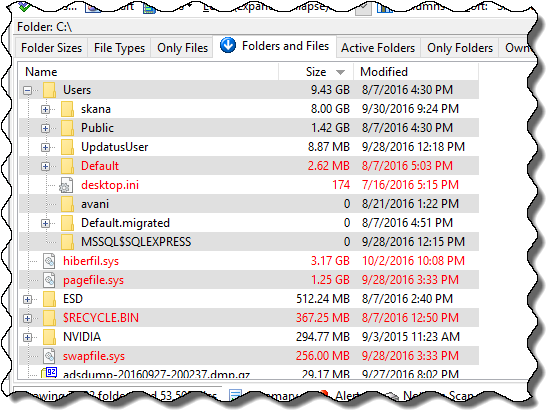
Use this report and get an Explorer like view but with a difference. It is more like the left pane of Windows Explorer but the difference is that it lists the files too. So if you ever need to look at or print the folders and the files in one screen, this is the way to go. It also lists folder sizes but doesn't have all the features of Folder Sizes report. It can be useful when you want to quickly drill down a folder to see various sizes of files and folders.
Columns available: Folder/File Name, Size, Modified Date
For example, this is the Folders and Files report for a location where Nero software is installed. It shows all the folders and files in a hierarchical list. I have used Natural order for sorting here.
| Active Folders Report (not available in ShowSize PE)
Active Folders Report
Not available in ShowSize PE (Personal Edition)
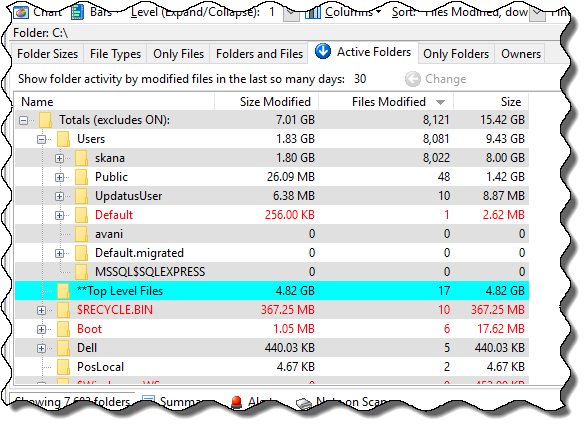
This shows the active folders by the size or number of files modified in the last so many days. A nice report for network admins.
Use this report and see active folders by the size or number of files modified in the last so many days. Hence, you can determine most active folders based on various criteria that you want to use. See the example usage below. To change the number of days to look for, click on the days box and type a new value. Then, click on the button Change next to it.
Columns available: Folder Name, Size Modified, Files Modified
For example, in this report I can see that the folder Search is most active in terms of files modified or changed.
| Only Folders Report (not available in ShowSize PE)
Only Folders Report
Not available in ShowSize PE (Personal Edition)
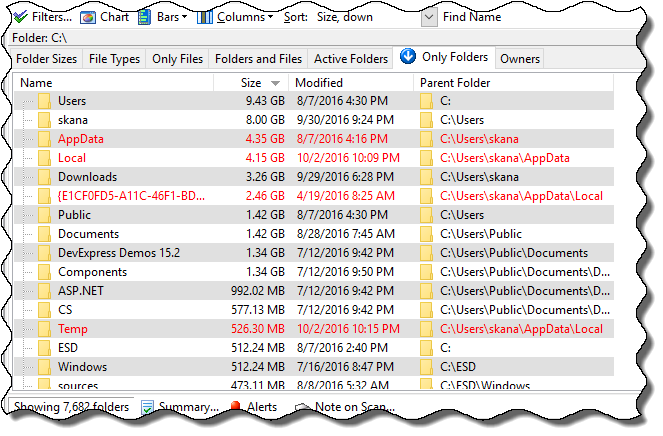
This is different from other Folder reports in ShowSize because the folders are not shown in a hierarchical manner. Rather, they all appear in a straight list, quite like the Only Files Report. This gives you new ways to explore your file system. For example, you can sort on folder sizes and find the largest folders contained on a drive or a folder. It doesn't matter at which level it exists. It always appears at the top on a report reverse sorted on folder sizes. Or, you can sort on dates and see the oldest folders. Similarly, you can find all the folders with the same name as in the following example screenshot
Columns available: Folder Name, Size, Modified Date, Parent Folder
For example, I have sorted this Only Folders report on names and I can see all the same named folders at a glance irrespective of how deep they are located. This is different from the Folder Sizes or Folders and Files report where such a sorting is not possible due to hierarchical display.
| Owners Report (Available only in minimum 5-user-license of ShowSize)
Owners Report
Available only in minimum 5-user-license of ShowSize
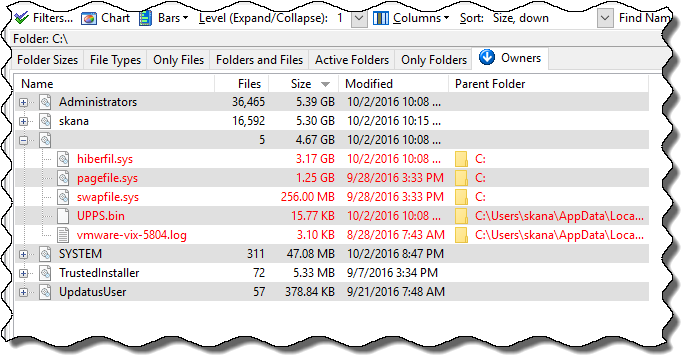
Use this report and find out how much space is occupied by the files belonging to an owner. You can also see a complete list of files of a particular owner by simply clicking on the + button next to an owner item.
Columns available: Owner Name, Files, Size, Modified Date, Parent Folder
In this example, I can see files of the owner SYSTEM.
| Unused Files Report (discontinued on Windows Vista)
Unused Files Report
( discontinued on Windows Vista)
Use this report and see a list of files not used in last so many days. To change the number of days to look for, click on the days box and type a new value. Then, click on the button Change next to it.
Columns available: File Name, Size, Not Used Days, Used Date, Parent Folder, Modified Date
The partial header on column "Not Use.." is actually "Not Used Days." For example, in this report I can see that I have not used the help file vspeller.hlp at all in last 548 days. In fact, that is how discovered this help file.
Caution! The Not Used Days column is based on the Last Access Date of files. It is very important to understand the concept of Used Date before you go and delete some files. You must use your own judgement in using this information, especially when making a decision to delete some files or to perform other critical operations based on the report. In particular, do not delete any files from Windows or other system folders.
|
Screen shots of some other features
ShowSize has some very useful options and filters. You will find all the details in the help file. I am showing the major ones below.
Saving and Sharing of Reports (Available only in minimum 5-user-license of ShowSize)
Saving and Sharing of Reports:
Available only in minimum 5-user-license of ShowSize
You can save a ShowSize report by using the menu Tools--Save Report. Other users can view such a report by opening it with the menu Tools--View Report. A report can be viewed this way even on a system where that drive location is not present.
The picture shows a report being viewed. This looks quite the same as a live report except that the left pane is not there. Also, you CAN NOT do any LIVE operations on the files or folders of a report being viewed. For example, you can not open those folders in explorer, start a command prompt on them, delete folders and files, etc. Other than that, all the report viewing features, printing options and filters work on the saved report.
| New, redesigned scanning, reporting and filtering engine
New, redesigned scanning, reporting and filtering engine:
- New design ensures that we can easily add new reports in future based on your suggestions.
- Elimination of System and Hidden items now does not require a rescan but just a change in the filters.
- Symbolic link skipping is now supported (but not in ShowSize PE).
- Customizable color features have been added to identify System/Hidden items, symbolic links and to test filtered items.
| Finding files or folders by names
Finding files or folders by names
Searching for a file or folder name in any report is now very convenient. Clicking on a Find Names tab on the right opens a search pane where you can enter the characters to search for in the name. It fill ups all the names found in the list. Click on any name, and it positions to that item on the main report.
Finding names works on the current report. So you can use it to find folders in Folders and Files or Folder Sizes report. Or you can find files in Only Files or other such reports.
| Starting a command prompt
Starting a command prompt:
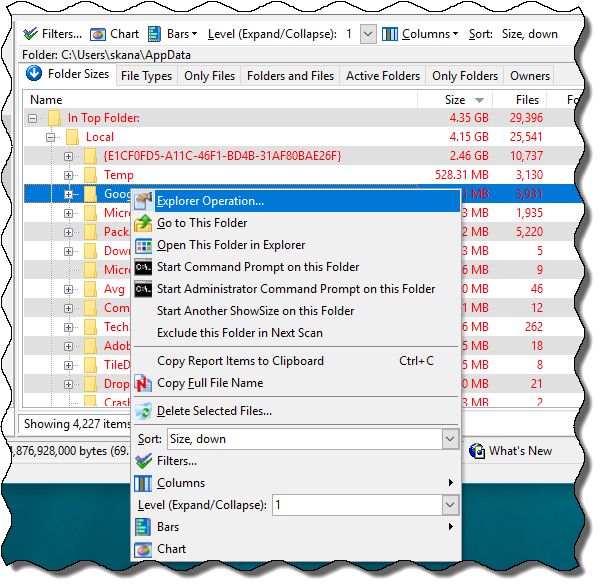
You can right-click on the report and start a command prompt or administrator command prompt (Vista) on the selected folder or the containing folder of the selected file.
| Auto Refresh (not available in ShowSize PE)
Auto refresh:
Not available in ShowSize PE (Personal Edition)
The Auto Refresh feature allows you to leave a ShowSize window on for a long time, rescanning or refreshing automatically in a preset interval. The idea is that without any intervention, you get to see the latest reports on a disk location. The auto refresh stops as soon as you do any operation on that window. So if you don't want to disturb it, start another ShowSize to do your operations while leaving the Auto-refresh copy of ShowSize running.
|
|