New ShowSize 6 released!
To see a quick overview of new features in ShowSize 6, please see Recent Features.
7 Kinds of File Lists for Effective Disk Space Analysis
7 hierarchical and flat lists of folders and files
- Folder Sizes list: See the largest folders in size. See description.
- New Kind of Top Items Chart that shows only the significant items. See the description later on this page.
- Pie Chart of largest folders: See description.
- File types list: see what file types (extensions) are taking the most disk space. See description.
- Only Files list: See all the files in one flat list. See description.
- Folders and Files list: Sort and display folders and files together, in one list. See description.
- Active Folders list: See recently modified folders. See description.
- Only Folders list: See all the folders in one flat list. See description.
- Owners list: See what file owners are taking the most disk space. See description.
For an overview of all the lists and how they are used, please see the slides at the top of the Home page.
Seven remarkable features that you may not find in other software.
1 Huge Capacity and the ability to Stop a scan
Modern disk drives are huge. Finding folder sizes takes time as the software has to perform a deep scan. It is important that you should be able to cancel a long running scan in case you change your mind. Read more details, later on this page.
2 Save a directory listing to a file and later view it on any system. Easy to send and share with other admin users.
Such a list can be huge, I mean, really huge if you can imagine the capacity of modern disk drives. Many toy programs will just choke on displaying such a list, let alone saving it. ShowSize does it very well.
For more details, please see
How to save a directory listing to a file.
3 Save your time by Excluding Standard Big Folders that you shouldn't clean up
Take for example, Windows folder or Program File folders. You can't really reduce disk space in them. So why waste time scanning them? In ShowSize, you can exclude such folders, including your own that you don't want to disturb. This saves a huge amount of time.
4 Use a Flat List or Tree List as appropriate
ShowSize presents information in both Tree and Flat lists. A flat list might be more useful in certain cases. For example, how do you find the largest file on a disk? Use the flat list "Only Files" and sort on size so that the largest files come on top. You can not perform such analysis in a Tree List where the largest file might be deep inside a folder and a sort will not bring it to the top.
5 Apply advanced filters to find the information that you need.
You can click on Advanced Filter Tool menu to start the accompanying utility
ShowSize Analyze that helps you to apply advanced filters and export to many file types, such as an Excel spreadsheet.
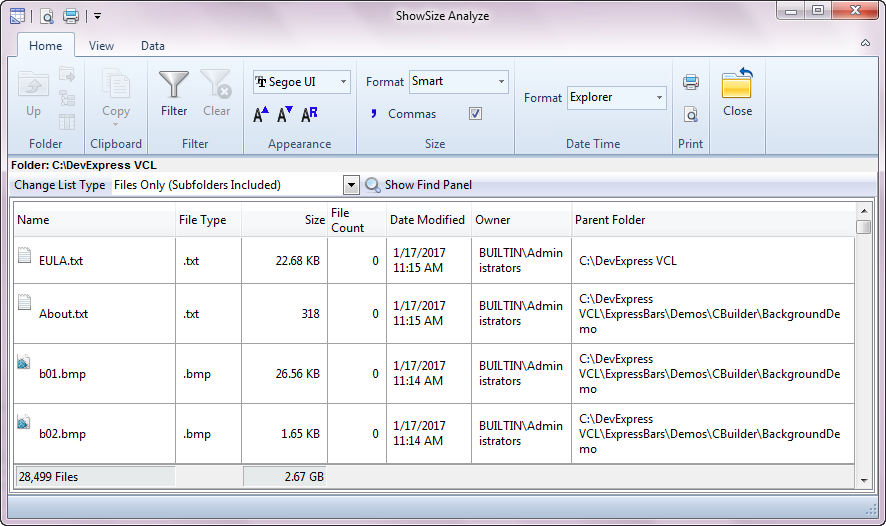
ShowSize Analyze allows you to specify complex, custom filters to see file and folder lists that satisfy a criteria.
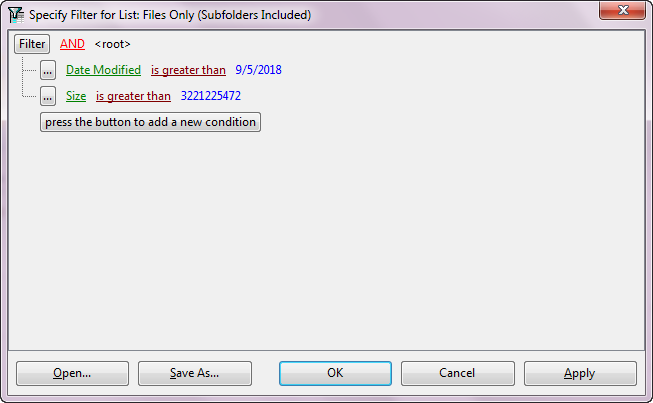
For example, the above screen shows a filter being set up to show files greater than a particular size and after a certain date. Dates between are also possible Similarly setting filters on owners, file types or extensions, names, parent folders are possible.
6 A new kind of intelligent Top Items Chart shows only the most significant items to help you find big items quickly.
A Top Items Chart that shows only the most significant items to give you an uncluttered view of the largest items whether they are folders, file types, files or file owners.
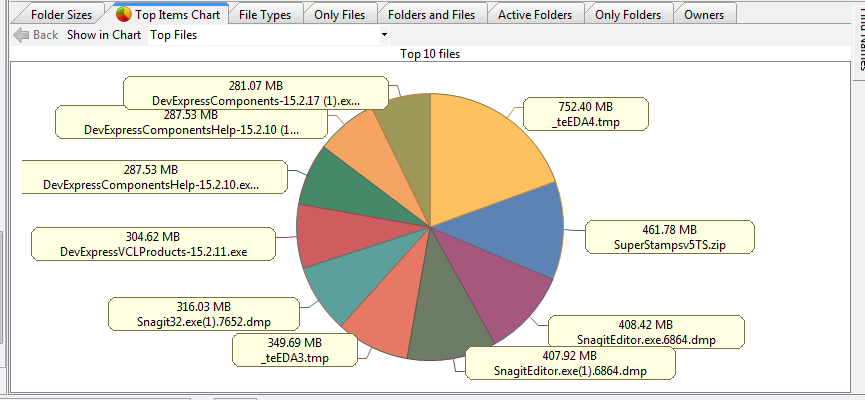
The choices available are to see Top Folders, Top Files, Top File Types and Top Owners. This chart is smart enough to only show the most significant items in terms of size. That means, it may only show 5 items if rest of the items are very small compared to those shown.
A great feature on this chart is a drill down. You can just click on an item to go to it in the detailed report or to a lower level chart. A back operation helps you get back from the drill down.
The earlier detailed Pie Chart that is similar to what you find in opther such programs is still available on the View page of the Ribbon. But you must take a look at Top Items Chart. It saves time.
7 Skip Deduplicated Folders (Symbolic links)
These are also known as Symbolic Links or Reparse Points. ShowSize has a setting to ignore Symbolic links which is same as ignoring Deduplicated folders. This gives you a more accurate disk space analysis as the deduplicated data is not scanned again.
You need Heavy-duty software to handle the capacity of modern huge disk drives.
Modern disk drives are huge, running into terabytes of disk space and millions of folders and files. DO NOT USE "Toy programs" to analyze disk space on such huge disks. Moreover, you should be able to cancel out of long running scan operations.
Toy programs will often choke and hang on such huge directory listings. Save time, use professional software, ShowSize, that is designed for heavy-duty use.
Disk directory scans are time consuming, especially for all the pieces of information that ShowSize can collect and show in its Lists. It's not just Sizes of folders but much more.
Scanning directory information in order to collect all the information takes time because the operation is limited by the speed of disk access. It depends on how big the directory is in terms of number of folders and files deep within it. If you start scanning the directory information of a big disk to add up the file and folder sizes, it may contain hundreds of thousands of folders and millions of files. You don't want to sit there waiting for a full disk scan when all you are interested in is a specific folder and its subfolders. Neither do you want to use the mighty Task Manager to stop a wrong scan started by mistake on a big folder.
The Exclude Folders feature in ShowSize saves time when scanning huge drives by allowing you to specify folders to exclude from scanning.
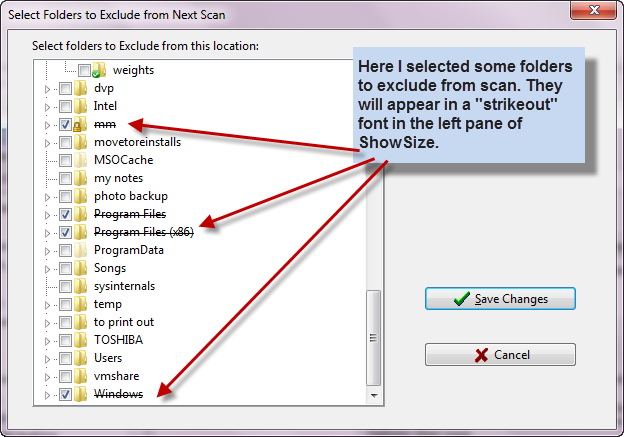
This saves considerable time if you plan on setting up the excluded folders properly. Once set up, ShowSize remembers them for any location. Moreover, useful indicators are provided in all places that you are excluding certain folders so that you are not confused by the results shown due to these excluded folders.
See more details on Exclude Folders feature.
Beware of disk utilities that get locked into a long operation like a scan and don't give you any way to cancel out of it.
Such utilities appear to hang because they often don't display how the scan is progressing. It takes quite an effort to build such features that give useful feedback. No wonder, you often reach for the Task Manager to stop such programs.
ShowSize is smart software. You can precisely go to scan the folder that you are really interested in. And, if by mistake, you start a scan on a big folder and then change your mind, you don't have to grit your teeth and sit through till it completes. You can simply cancel it by clicking on a Cancel button.
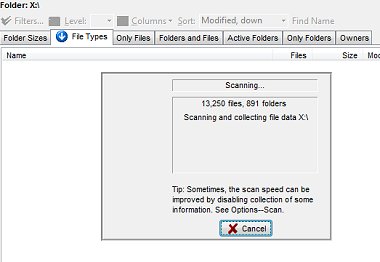
There are many other time saving features. Get the smart software that is designed and optimized for convenience. Just scan a big folder with ShowSize and then do the scan with any of other such utilities. You will know the difference. Talk to one of our customers and they will tell you why they prefer to use ShowSize.
Unique features in ShowSize:
We do our own innovation. We don't follow other software. That's why you will find unique features in ShowSize that you won't find elsewhere. For example, take a look at the following features:
- The Exclude Folders feature described above.
- The file types report is extremely useful to see files and sizes grouped by type.
- The Only Files report gives a straight list of all the files so that you can sort on any criteria and find a file fast. For example, just a click on the Size column would show move the largest or smallest file to the top.
- Only Files report is similar to the above but shows only folders.
- Active folders report is another innovation in ShowSize.
- ShowSize shows system, hidden items and symbolic links in customizable colors.
- The filters feature has a smart feature to test the filter too by not removing the filtered items but just showing them in another color.
- Saving and sharing of reports: ShowSize has a special feature for 5-licenses-or-more that allows to save a scan result and then later examine it on any computer (even one that is not connected to that location). You can see a screenshot of this operation at the end of the Screenshots page.
- All operations in ShowSize are cancelable: Any software that performs the time consuming disk scans has to be cancelable. Read more about it in the following article.
ShowSize is designed for optimized performance:
- Great capacity for huge listings and their printout
- Most of the operations are cancelable
- Disk scan data is cached
- Superior design, higher speed
- No memory leaks
Read more about the performance below.
Virtual Listing Technology:
ShowSize has been designed carefully for optimized performance. It is important to understand the following concepts when you use such a program that can produce huge reports:
Great capacity for huge listings and their printout:
ShowSize uses virtual list technology to accommodate even millions of items in the reports without using too much memory.
Most of the operations are cancelable:
Such large capacity is useless without an ability to cancel at any time. We have taken extra pains to ensure that almost all the time consuming operations can be canceled in ShowSize. This is for your convenience so that you don't get locked up in a long operation if you decide to change your mind after starting a scan or report.
Disk scan data is cached:
ShowSize remembers the files list and attributes in a special cache and reuses it till you move to a folder outside the scanned data or till you specifically refresh it. Hence, when drilling down into the reports, you will see that the reports are filled up fast! This is especially noticeable when using large drives or slow network locations. Moreover, ShowSize uses a disk based cache so that it can now display even millions of items in the lists.
Superior design, higher speed:
ShowSize has been designed with considerations for speed. Many disk utilities list all the drives and their folders in the left pane. While this might be more convenient, it is certainly slower, specially on systems with large numbers of drives and folders. ShowSize has been designed to show only a single drive's contents in the left folder. For network locations, it even saves more time by making the network location the root of the left pane. Moreover, even that can be switched off for slower network drives. Please see Tips on working with slow network drives in the help file.
Best of all, you can start more copies of ShowSize each working on a different drive or main folder.
No memory leaks:
ShowSize has been thoroughly tested for memory leaks. When you go for a file system utility, you should test it thoroughly to see if it has memory leaks. A good test for such programs would be to run them for a while and repeatedly scan big drives. If you have a resource monitoring program turned on, you should see your system running out of resources gradually. Finally, you might see that many other programs have stopped working and a Windows message appears, "You are dangerously low on resources." Beware of such programs which have memory leaks.
We do our own innovation
We don't follow other software. That's why you will find unique features in ShowSize that you won't find elsewhere. ShowSize is an innovative product in a class of its own. It uses a virtual listing technology that can process and display terabytes of disk space and millions of files. Ordinary software will break on such large data. Scanning a big disk full of millions of files may take a lot of time, especially on network drives. In ShowSize all such scan operations are cancelable so that you avoid irritating waits or hangs which are quite common with many disk utilities.
Other features:
Sort by Size
The lists become more useful when you Sort by Size. Just click on the header of the Size column and see the items sorted by size. Similarly, you can click on other column headers to sort on those columns.
Enlarge Text
Use the View menu and make the text size larger.
Show Sizes in Various Formats
Use the View--Format pull down to select a format.
Show Value Bars for visual reprresentation of Sizes
Use the View menu and select an option in Value Bars.
Open any folder in Windows File Manager (Explorer)
Use the right-click menu on an item to do that. You can even open the containing folder of a file item or start a command prompt on that folder.
Copy Report Items to Clipboard
Select one or more items by Ctrl-click and copy their report text to the clipboard. For example, you can use that for pasting the report in a word processor for printing. The paid version has direct printing features.
Find Files by Name
Use the Find menu that opens a Find Panel on the right.
Other interesting articles: